
SharePoint external sharing lets internal users give people outside your Microsoft 365 tenant access to sites, files, and folders. The single most important admin action before any user shares a single file: set the tenant-level sharing ceiling in the SharePoint admin center. That ceiling controls what site owners are even allowed to do. Set it wrong, and no amount of site-level configuration will save you.
Three platform components govern how this works in practice:
- SharePoint Online hosts the sharing controls at both the tenant and site level, and its admin center is where you set the ceiling.
- Microsoft Entra (Azure AD) B2B manages guest identity. When an external user accepts a sharing invitation, Entra creates a guest account in your directory, and Entra’s own external collaboration settings can override or restrict what SharePoint allows.
- Microsoft 365 audit logs record every sharing event, from anonymous link creation to guest account provisioning. They provide review evidence, help spot oversharing, and can support the evidence plan in a SOC 2 readiness program.
Per Microsoft’s external sharing overview, tenant-level external sharing is on by default, and the most restrictive value between tenant and site always applies.
Pro Tip: Before touching any site-level setting, document your current tenant sharing level. Changing the tenant ceiling retroactively restricts existing site settings, which can break active collaborations without warning.
Key Takeaways
The tenant-level sharing ceiling is the single most important SharePoint external sharing control: set it before enabling any site-level sharing, and every other governance layer builds on it.
| Point | Details |
|---|---|
| Set the tenant ceiling first | Configure the SharePoint admin center sharing level before any site owner enables external access. |
| Default link type drives behavior | Set DefaultSharingLinkType to Direct and DefaultLinkPermission to View to make the safe choice the automatic one. |
| Sensitivity labels prevent drift | Apply Microsoft Purview labels to regulated sites so sharing restrictions travel with the container, not the admin. |
| Guest lifecycle requires automation | Use Entra access reviews and ExternalUserExpireInDays to keep the guest population current and auditable. |
| Rivell manages the full program | Rivell’s managed IT services cover initial configuration, quarterly access reviews, and compliance reporting for Microsoft 365 environments. |
Table of Contents
- How SharePoint external sharing settings work at the organization level
- How site-level sharing settings work and when to override tenant defaults
- What are the SharePoint sharing link types and their risk profiles?
- How Microsoft Entra B2B integration affects guest identity and controls
- Advanced controls: expirations, default link types, and domain policies
- How sharing invitations and links work for files, folders, sites, and Teams
- How to revoke access, remove guests, and design a guest lifecycle
- How to monitor external sharing activity and set alerts
- Security controls and governance framework for external collaboration
- Rivell’s practical admin checklist for safe external sharing
- Common problems with external sharing and how to resolve them
- What most SharePoint admins get wrong about external sharing governance
- How Rivell helps you secure and operate external sharing in Microsoft 365
- Sources
How SharePoint external sharing settings work at the organization level
The tenant sharing level is the ceiling for your entire environment. No site can be more permissive than this setting, regardless of what a site owner configures.
Step-by-step path to the tenant sharing settings
- Sign in to the SharePoint admin center.
- In the left navigation, go to Policies → Sharing.
- Under External sharing, drag the slider to your chosen level for both SharePoint and OneDrive.
- Expand More external sharing settings to configure link expirations, domain restrictions, and default link types.
- Click Save.
The four tenant-level sharing options
Microsoft’s admin center guidance describes four SharingCapability values:
The “most-restrictive-wins” rule applies in both directions. If your tenant is set to “New and existing guests” but a site is set to “Only people in your organization,” the site wins for that site. If a site owner tries to set their site to “Anyone” while the tenant is set to “New and existing guests,” SharePoint blocks it.
When to choose each option
Anyone is appropriate only when you have a genuine business need for anonymous access, such as a public-facing document library or a marketing asset portal. It carries the highest risk because links can be forwarded without restriction.
New and existing guests is the right default for most organizations. It requires authentication, creates auditable guest accounts in Entra, and still allows broad collaboration.
Existing guests only suits organizations with a defined partner list already in Entra. No new external users can be invited, which works well for regulated industries where every external party must be vetted before access.
Only people in your organization is appropriate for environments where no external sharing is ever justified, such as a dedicated HR or legal site.
Microsoft Entra external collaboration constraints
Entra’s external collaboration settings sit above SharePoint’s sharing controls. Even if your tenant allows “New and existing guests,” Entra can restrict who can send invitations (all users, member users only, or admins only) and which external domains are permitted. These Entra settings always apply, so align them with your SharePoint tenant policy before rolling out any sharing program.
Pro Tip: Choose the most restrictive tenant ceiling that still supports your required business use cases. You can always loosen a site’s setting later; recovering from a permissive default after a data exposure is far more painful.
How site-level sharing settings work and when to override tenant defaults
Site-level settings let you tighten sharing for individual sites without changing the tenant ceiling. They cannot loosen it.
Steps to change a site’s sharing setting
- In the SharePoint admin center, go to Sites → Active sites.
- Select the site name to open its details panel.
- Click Settings → More sharing settings.
- Adjust the external sharing level and click Save.
Per Microsoft’s site-level configuration guidance, a site can match or be more restrictive than the tenant, but never more permissive.
Default sharing settings by site type
Teams-connected sites deserve special attention. A Teams channel’s guest access setting and the underlying SharePoint site’s sharing setting are separate controls. A guest can be added to a Team without having direct SharePoint site access, and vice versa. Audit both when troubleshooting access complaints.
When to tighten site-level settings
- Any site containing regulated data (HIPAA, PII, financial records) should be set to “Only people in your organization” or “Existing guests only” at minimum.
- A dedicated client collaboration site can be set to “New and existing guests” even if the broader intranet is locked down, giving you a controlled channel without opening everything.
- Apply a Microsoft Purview sensitivity label to the site container when you want the sharing restriction to travel with the site automatically, regardless of who manages it later.
What are the SharePoint sharing link types and their risk profiles?
The sharing level controls who can be invited. The link type controls how they access content. Both matter.
Comparison of link and guest models
Risk profile of each option
Anyone links are the highest-risk option. They can be forwarded to anyone, downloaded without authentication, and provide no way to identify who accessed the content after the link is created. The only mitigation is a short expiration and a view-only permission.
New and existing guests create a guest account in Entra on first acceptance, which means you can revoke access, run access reviews, and audit activity. The risk is orphaned guest accounts when the business relationship ends and no offboarding process exists.
Existing guests only is the tightest authenticated option. The tradeoff is operational friction: every external party must be pre-provisioned in Entra before they can receive a sharing invitation.
Specific people (Direct) links are the recommended default for most organizations. The user must name the recipient, which eliminates the lazy-path problem of broad link sharing.
Prescriptive use cases
- Public marketing assets: Anyone links with a 7-day expiration and view-only permission.
- Client deliverables: Specific people links only, with the recipient’s work email address.
- Partner project collaboration: New and existing guests on a dedicated site, with a sensitivity label enforcing the sharing boundary.
- Regulated data (HIPAA, legal): Existing guests only or internal only, with conditional access requiring compliant devices.
Per SharePoint Maven’s best practices, making “Specific people” the default link type is the single highest-leverage configuration change most organizations can make.
How Microsoft Entra B2B integration affects guest identity and controls
When a user shares a SharePoint file with an external email address, SharePoint can handle the authentication natively or route it through Microsoft Entra B2B. Understanding which path applies determines what controls you have over the guest.
Two sharing models
Native SharePoint external authentication applies when the tenant allows Anyone links. No guest account is created. The link holder accesses content without signing in, and Entra has no record of the access.
Microsoft Entra B2B integration applies when the sharing requires authentication (New and existing guests, Existing guests, or Specific people). Entra creates a guest account in your directory on first invitation acceptance. That account is subject to all Entra policies: conditional access, MFA requirements, sign-in risk policies, and guest lifecycle settings.
How Entra external collaboration settings interact with SharePoint
- Guest invite restrictions: Entra controls who in your organization can invite external users. The options range from “anyone in the organization” to “only admins.” Tightening this in Entra overrides SharePoint’s sharing UI for non-admin users.
- Domain allow/block lists: Entra maintains its own domain restrictions separate from SharePoint’s domain filters. Both must be aligned. A domain blocked in Entra cannot receive SharePoint invitations even if SharePoint’s domain list allows it.
- One-time passcode (OTP): When a guest does not have a Microsoft account, Entra can issue a one-time passcode for authentication. This keeps the sharing authenticated and auditable without requiring the guest to create a Microsoft account.
How a sharing invite flows
A user shares a file in SharePoint Online. SharePoint checks the tenant sharing ceiling and the site-level setting. If authentication is required, SharePoint generates an invitation email. The recipient clicks the link and is redirected to Entra for authentication. Entra checks its external collaboration settings and domain policies. If the guest is new, Entra creates a B2B guest account. The guest is redirected back to SharePoint with the appropriate permissions.
Pro Tip: Enforce guest lifecycle through Entra governance settings: set ExternalUserExpireInDays to 180 days and configure quarterly access reviews so stale guest accounts are caught before they become a compliance liability.

Advanced controls: expirations, default link types, and domain policies
These settings do the most work per configuration change. Getting them right means users make the safe choice by default, without needing to think about it.
Anyone link expiration
Set RequireAnonymousLinksExpireInDays in the SharePoint admin center under More external sharing settings, or via PowerShell:
Set-SPOTenant -RequireAnonymousLinksExpireInDays 7
Recommended expirations by content class:
- Public marketing assets: 7 days
- Project deliverables shared externally: 30 days
- Temporary vendor access: 14 days
- Sensitive or regulated content: Anyone links should be disabled entirely
Default link type and permission
Set DefaultSharingLinkType to Direct (Specific people) and DefaultLinkPermission to View in the admin center or via PowerShell:
Set-SPOTenant -DefaultSharingLinkType Direct
Set-SPOTenant -DefaultLinkPermission View
This makes the safe option the lazy path. Users who click “Share” and accept the default send a view-only link to a named recipient, which is the lowest-risk authenticated sharing action available.
Domain allow and block lists
SharePoint supports both an allowlist and a blocklist for external domains, configured under More external sharing settings. Use one or the other, not both simultaneously.
- Allowlist: Only the listed domains can receive sharing invitations. Best for organizations with a defined partner set (law firms, healthcare networks, specific vendors).
- Blocklist: All domains are permitted except the listed ones. Best for blocking known bad actors or personal email domains (gmail.com, yahoo.com) when you want broad collaboration with business email addresses only.
Example policy templates:
- Allowlist for a healthcare organization: Add only the domains of contracted partners, insurers, and referral networks.
- Blocklist for a professional services firm: Block gmail.com, yahoo.com, hotmail.com to prevent sharing with personal accounts while allowing all business domains.
- Guest expiration policy: Set ExternalUserExpireInDays to 180 and configure Entra access reviews to run quarterly.
How sharing invitations and links work for files, folders, sites, and Teams
Understanding the operational flow helps admins explain expected behavior to users and triage complaints accurately.
Sharing a file or folder
- The user right-clicks a file in SharePoint or OneDrive and selects Share.
- The sharing dialog shows the default link type (set by the admin’s DefaultSharingLinkType).
- The user enters the recipient’s email address (for Specific people links) or copies the link (for Anyone links).
- SharePoint sends an invitation email with a redemption link.
- The recipient clicks the link, authenticates via Entra (or uses OTP), and gains access.
- For new guests, Entra creates a B2B guest account. The guest appears in your Entra directory under External users.
Sharing a site
Site sharing works differently from file sharing. A site owner goes to Site settings → Site permissions → Invite people and adds the external user directly to a SharePoint group. This grants broader access than a file link and should be reserved for ongoing collaboration rather than one-time file delivery.
Inviting a guest to a Teams-connected site
Adding a guest to a Microsoft Teams team automatically grants them access to the underlying SharePoint site. The guest receives a Teams invitation, accepts it, and gains access to the team’s channels and the SharePoint document library. Admins should audit Teams guest access separately from SharePoint sharing reports, since the two surfaces generate different audit events.
Edge cases worth knowing
- Non-Microsoft accounts: Entra OTP handles authentication for guests without a Microsoft account. The guest receives a code by email and enters it to sign in. No Microsoft account is required.
- Cross-tenant collaboration via Shared Channels: Microsoft Teams Shared Channels allow external users to collaborate without being added as guests to your Entra directory. The external user’s home tenant authenticates them. This is a fundamentally different model from B2B guest sharing and requires separate configuration in Entra cross-tenant access settings.
- Desktop Office vs. Office.com for guests: Guests accessing SharePoint content through a browser at Office.com generally have a smoother experience than through the desktop Office apps, which may prompt for additional sign-in or fail to open files depending on the guest’s account type and your conditional access policies.
For a deeper look at guest sharing behavior differences across OneDrive, SharePoint, and Lists, Microsoft’s support documentation covers authentication flows and known limitations.
How to revoke access, remove guests, and design a guest lifecycle
Removing access is as operationally important as granting it. Stale guest accounts and forgotten Anyone links are the two most common sources of unintended data exposure.
Action checklist to stop sharing
- Remove direct permissions: Go to the site or file, open Manage access, and remove the external user’s permission entry.
- Delete Anyone links: In the sharing dialog for the file or folder, click the Anyone link and select Stop sharing. This invalidates the link immediately.
- Remove the guest from Entra: In the Microsoft Entra admin center, go to Users → All users, filter by User type = Guest, and delete the account. This revokes all SharePoint access tied to that guest identity.
- Remove from Teams: If the guest was added to a Teams team, remove them from the team separately. Removing from Entra does not automatically remove them from Teams membership lists in all configurations.
Finding orphaned external shares
Use the SharePoint admin center’s Sharing report under Reports → Usage to identify sites with active external sharing. For bulk cleanup, PowerShell with the SharePoint Online Management Shell or Microsoft Graph API queries can enumerate all external sharing links across the tenant and filter by age or permission type.
Guest lifecycle best practices
- Set automatic guest account expiration in Entra (ExternalUserExpireInDays).
- Run Entra access reviews quarterly for all guest accounts, assigning review responsibility to the business owner who originally invited the guest.
- When a business relationship ends, trigger an offboarding checklist: remove from Teams, revoke SharePoint permissions, delete the Entra guest account, and document the action in your audit log.
Automation options
PowerShell, Microsoft Graph, and Entra access reviews can enforce lifecycle policies at scale. A Graph API query can return all guest accounts with a last sign-in date older than 90 days, which is a reliable proxy for stale access. Entra access reviews can be configured to auto-remove guests who are not approved by the reviewer, eliminating the manual step entirely.
How to monitor external sharing activity and set alerts
Monitoring is where governance becomes real. Configuration without visibility is just hope.
Key audit events to monitor
- SharingSet: Fired when a sharing permission is granted. Captures the recipient, the resource, and the permission level.
- SharingInvitationCreated: Fired when an invitation email is sent. Useful for tracking who is inviting whom.
- AnonymousLinkCreated: Fired when an Anyone link is generated. High-priority event for organizations with Anyone links restricted or disabled.
- SharingPolicyChanged: Fired when an admin changes tenant or site sharing settings. Should trigger an immediate review.
Where to find the reports
The SharePoint admin center’s Reports section shows active external sharing by site. The Microsoft 365 compliance portal’s Audit section lets you search for specific events by date, user, and operation. For bulk reporting, use PowerShell with Search-UnifiedAuditLog or Microsoft Graph’s audit log API.
Alerting rules to create
- Anonymous link created on a sensitivity-labeled site: Alert immediately. This suggests a user bypassed the label’s sharing restriction.
- New guest added to a site containing regulated data: Alert the site owner and the security team within 24 hours.
- Anyone link created with edit permission: Alert immediately. View-only is the acceptable default; edit permission on an anonymous link is almost never justified.
- SharingPolicyChanged by a non-global admin: Alert the security team. Tenant-level sharing changes should be rare and always reviewed.
Operational cadence
- Weekly: Review the AnonymousLinkCreated log for any links older than your expiration policy.
- Quarterly: Run a full guest account review using Entra access reviews. Pull the SharingSet report for the top 20 most-shared sites and verify the recipients are still active business relationships.
- Annually: Review the tenant sharing ceiling and domain allow/block list against current business requirements.
For teams building automated reporting pipelines, permission-aware patterns for SharePoint are worth reviewing before writing Graph queries that touch sharing data.
Security controls and governance framework for external collaboration
A layered control model is the only approach that holds up over time. Single-point controls fail when users find workarounds or when admins make one-off exceptions that accumulate into a permissive default.
The layered control stack
- Tenant ceiling: The outermost boundary. Sets the maximum permissiveness for the entire environment.
- Sensitivity labels: Container-scoped enforcement that travels with the site. A label applied to a site enforces its sharing setting regardless of who manages the site later. Per Microsoft’s archival best-practices guidance, sensitivity labels are more reliable than per-site manual locks because they survive admin turnover and configuration drift.
- Conditional access: Requires compliant devices, MFA, or specific network locations for guest sign-ins. Applied in Entra, not SharePoint.
- DLP policies: Microsoft Purview DLP can detect and block sharing of content containing sensitive information types (SSNs, credit card numbers, PHI) even when the sharing setting would otherwise allow it.
- App-enforced restrictions: Unmanaged device policies in SharePoint can restrict guests to browser-only access, preventing downloads to unmanaged endpoints.
Governance checklist
- Set DefaultSharingLinkType to Direct (Specific people).
- Set DefaultLinkPermission to View.
- Enable RequireAnonymousLinksExpireInDays to enforce anonymous link expirations within a range depending on content class.
- Configure a domain allowlist or blocklist aligned with your partner program.
- Enable guest account expiration in Entra (180 days recommended).
- Apply sensitivity labels to all sites containing regulated or confidential data.
- Configure conditional access policies requiring MFA for all guest sign-ins.
- Enable DLP policies for regulated data types.
- Schedule quarterly Entra access reviews for all guest accounts.
- Enable audit log alerts for key sharing events such as AnonymousLinkCreated and SharingPolicyChanged.
Compliance framework alignment
For HIPAA-covered entities, guest access to sites containing PHI should require compliant managed devices and MFA, enforced through conditional access. For NIST 800-171 compliance, access reviews and audit log retention are required controls. For CCPA, the ability to enumerate and revoke all access for a specific individual (a data subject request) requires the guest lifecycle and audit log infrastructure described above. Microsoft Purview sensitivity labels support all three frameworks by enforcing sharing boundaries at the container level.
A layered governance model covering tenant ceiling, sensitivity labels, default link type, and access reviews is the recognized standard for avoiding configuration drift and accidental oversharing.
Rivell’s practical admin checklist for safe external sharing
Initial configuration checklist
- Document the current tenant sharing level before making any changes.
- Set the tenant sharing ceiling to the most restrictive level that supports current business requirements.
- Set DefaultSharingLinkType to Specific people (Direct) and DefaultLinkPermission to view by default.
- Configure RequireAnonymousLinksExpireInDays set to expire anonymous links within a short period for most environments.
- Align Entra external collaboration settings with the SharePoint tenant policy.
- Configure a domain allowlist or blocklist.
- Apply sensitivity labels to all regulated and confidential sites where appropriate.
- Enable a DLP baseline policy for common sensitive information types.
- Enable audit log alerts for high-risk sharing events.
- Document the configuration and assign an owner for each setting.
Quarterly review template
- Run the SharePoint sharing report and review the top 20 externally shared sites.
- Pull the AnonymousLinkCreated audit log for the quarter and verify all links have expired.
- Run Entra access reviews for all guest accounts and action any auto-removal recommendations.
- Review the domain allow/block list against current vendor and partner relationships.
- Check for any SharingPolicyChanged events and verify they were authorized.
- Assign review ownership to site owners for their own sites, with central oversight retained through sensitivity labels and automated alerts.
Delegating without losing control
Site owners can manage their own site’s sharing settings within the tenant ceiling. The key is giving them a clear policy document, a sensitivity label taxonomy they can apply themselves, and an escalation path for exceptions. Central IT retains control through the tenant ceiling, the label enforcement, and the audit log.
Pro Tip: Avoid disabling external sharing tenant-wide. Users who cannot share through SharePoint will find another way, usually a personal Dropbox or Google Drive account, which is far harder to audit and govern. Controlled collaboration beats shadow IT every time.
Rivell’s Microsoft 365 implementation and consulting services cover the full initial configuration, sensitivity label taxonomy design, and ongoing access review operations described in this checklist.
Common problems with external sharing and how to resolve them
Diagnostic guide by symptom
Invites not received by the external user:
- Verify the tenant sharing ceiling allows the sharing type used.
- Check Entra external collaboration settings for invite restrictions.
- Confirm the recipient’s domain is not on a SharePoint or Entra blocklist.
- Ask the recipient to check their spam folder. Invitation emails from Microsoft 365 are sometimes filtered.
Guest can’t access after accepting the invite:
- Check whether the site-level sharing setting was changed after the invite was sent.
- Verify the guest account exists in Entra (it may have been deleted or expired).
- Confirm the guest is accessing the correct URL and is signed in with the invited email address.
- Check conditional access policies: the guest’s device may not meet compliance requirements.
Anyone links not working:
- Verify the tenant sharing ceiling is set to “Anyone.” If it was changed after the link was created, existing Anyone links may still work, but new ones cannot be created.
- Check whether the link has expired (RequireAnonymousLinksExpireInDays).
- Confirm the link permission is still active in the file’s sharing settings.
Access denied after tenant sharing changes:
- When the tenant ceiling is lowered, existing site settings that exceed the new ceiling are automatically reduced to match it. Active sharing links and guest permissions may be invalidated.
- Audit the SharingPolicyChanged event to confirm when the change occurred.
- Restore access by re-inviting affected guests at the new permission level.
When to escalate
- External domain blocks in Entra: If a guest’s domain is blocked at the Entra level, SharePoint cannot override it. The fix requires an Entra admin to update the external collaboration settings.
- Conditional access blocking guest sign-ins: If guests are blocked by a conditional access policy requiring compliant devices, the policy must be scoped to exclude guests or updated to allow browser-only access for unmanaged devices.
- Licensing gaps: Some advanced guest capabilities (Power BI reports embedded in SharePoint, certain Viva features) require the guest to have a license in their home tenant or a license assigned in your tenant. Identify the specific feature and check Microsoft’s licensing documentation for guest requirements.
What most SharePoint admins get wrong about external sharing governance
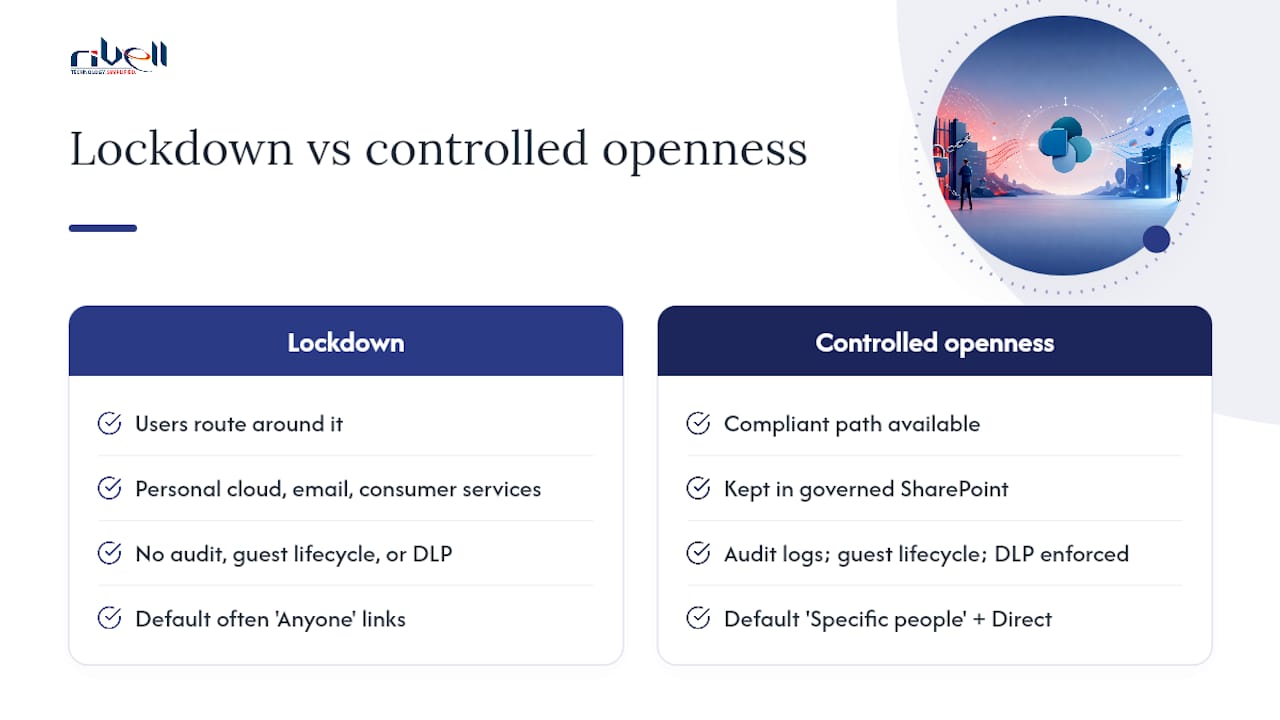
The conventional wisdom is that tighter is always safer. Lock everything down, disable Anyone links, and require IT approval for every external share. In practice, that approach creates a different problem: users route around it.
When SharePoint external sharing is too restrictive to be usable, files move to personal cloud storage, email attachments, or consumer file-sharing services. None of those have audit logs you control, guest lifecycle policies, or DLP enforcement. The data leaves your governance perimeter entirely, and you have no visibility into where it goes or who has it.
The more defensible position is controlled openness. Set the tenant ceiling at “New and existing guests,” make Specific people links the default, enforce short expirations on Anyone links, and apply sensitivity labels to the sites that genuinely need tighter controls. That configuration gives users a compliant path that is almost as easy as the risky one, which is the only way to actually change behavior at scale.
The other underappreciated risk is configuration drift. A tenant that was correctly configured two years ago may have accumulated dozens of site-level exceptions, expired sensitivity label assignments, and guest accounts from vendors whose contracts ended. The quarterly review cadence in this guide is not bureaucratic overhead. It is the only mechanism that catches drift before it becomes a breach.
Default link settings are where most organizations leave the most risk on the table. The SharePoint default link type, out of the box, is often set to “Anyone in your organization” or “Anyone with the link,” depending on the tenant configuration. A user who clicks Share and accepts the default has just created a broad link without intending to. Changing DefaultSharingLinkType to Direct costs nothing and eliminates that entire class of accidental oversharing.
How Rivell helps you secure and operate external sharing in Microsoft 365
Managing SharePoint external sharing correctly requires more than a one-time configuration. Tenant settings drift, guest populations grow stale, and new compliance requirements arrive faster than most IT teams can track.
Rivell’s managed IT services cover the full lifecycle of Microsoft 365 external sharing governance: initial tenant and site configuration, sensitivity label taxonomy design, conditional access policy setup, DLP baseline deployment, and ongoing quarterly access reviews. For organizations in regulated industries, Rivell also handles compliance reporting and audit log retention aligned with HIPAA, NIST, and CCPA requirements.
Service outcomes include:
- Reduced oversharing risk through enforced default link settings and automated guest expiration.
- Auditable guest lifecycle with quarterly Entra access reviews and documented offboarding.
- Compliance reporting tied to Microsoft 365 audit logs and Purview sensitivity labels.
- Faster incident response when a SharingPolicyChanged or AnonymousLinkCreated alert fires.
To discuss how Rivell can implement and operate your SharePoint governance program, contact the team for a scoped assessment.
Sources
The following references are the primary sources for the configuration steps, precedence rules, and governance recommendations in this guide. Use them as your first stop when changing settings in a production environment.
- Overview of external sharing in SharePoint and OneDrive
- Governing SharePoint and OneDrive External Sharing: Tenant vs Site Controls, Sensitivity Labels, and Access Reviews — KloudVin
- SharePoint Online External Sharing Best Practices | SharePoint Maven