
Set up your Intune tenant, assign licenses, enable automatic MDM enrollment, deploy a Level 1 compliance baseline, and enroll a pilot group to validate the flow. This sequence, executed in order, gets you from zero to a managed, policy-enforced device fleet faster than any other path. The Microsoft Step 1 setup checklist confirms the same sequencing: confirm supported configurations, create the tenant, add users and groups, assign licenses, and configure roles and scope tags before you touch a single device.
Here is the minimum viable checklist to run before enrolling your first device:
- Create or enable the Intune tenant in the Microsoft 365 admin center, or sign up for a 30-day free trial if you are evaluating.
- Confirm MDM authority is set to Microsoft Intune (not Configuration Manager) in the Intune admin center under Tenant Administration.
- Assign Intune licenses to your pilot admins and test users via Microsoft Entra ID or the Microsoft 365 admin center.
- Enable automatic MDM enrollment in Entra ID under Mobility (MDM and MAM) so Windows devices joining Entra automatically enroll.
- Deploy a Level 1 compliance baseline targeting your pilot group: minimum OS version, PIN/password requirement, and disk encryption.
- Enroll one Windows device using Entra Join to validate the end-to-end flow before scaling.
- Verify Conditional Access integration by confirming device compliance state flows into at least one Entra ID Conditional Access policy.
Named entities you will configure throughout this guide: Microsoft Intune, Microsoft Entra ID (formerly Azure AD), Windows Autopilot, Apple MDM push certificate, Managed Google Play, and Microsoft Defender for Endpoint.
Key Takeaways
A successful Intune deployment follows a fixed sequence: tenant setup and license assignment first, then group and role structure, then platform enrollment, then compliance and Conditional Access, then full fleet rollout.
| Point | Details |
|---|---|
| Confirm MDM authority first | Set MDM authority to Microsoft Intune before enrolling any device; changing it later requires a support ticket. |
| Pilot before production | Enroll 5–15 devices across platforms before expanding; this catches policy and enrollment failures cheaply. |
| Level 1 baseline on day one | Require minimum OS, PIN, and disk encryption from the start; add Level 2 controls after a stable pilot. |
| Report-only Conditional Access | Run every new Conditional Access policy in report-only for at least 5 business days before enforcement. |
| Full deployment timeline | Expect 3–6 weeks from tenant setup to full production readiness for a 200-device mixed-platform fleet. |
If you want Rivell to handle the tenant setup, pilot design, and ongoing Intune management for your organization, Rivell’s managed IT services for small businesses covers exactly that.
Table of Contents
- What do you need before starting an Intune setup guide?
- How do you sign up and configure your Intune tenant?
- How do you add users, groups, and roles for a safe rollout?
- What tenant settings and Company Portal options should you configure?
- How do you enroll devices on each platform?
- What network endpoints does Intune require?
- How do you build a baseline of compliance and Conditional Access policies?
- How do you deploy and manage apps across platforms?
- How do you run a pilot and troubleshoot enrollment issues?
- What advanced integrations should you add after a successful pilot?
- What can and can’t you export during a tenant-to-tenant migration?
- Rivell’s recommended Zero Trust minimal baseline for SMBs
- How do you recover from a misconfiguration in Intune?
- How do you automate Intune deployments at scale?
- How do you keep Intune components current and compatible?
- How long does a full Intune deployment actually take?
- What Rivell has learned from real Intune deployments
- Sources
What do you need before starting an Intune setup guide?
Getting prerequisites wrong is the single most common reason Intune deployments stall on day one. Confirm these before you open the admin center.
Licensing options
| License SKU | Intune Plan | Entra ID Tier | Best For |
|---|---|---|---|
| Microsoft 365 Business Premium | Plan 1 | P1 | SMBs under 300 users |
| Microsoft 365 E3 + EMS E3 | Plan 1 | P1 | Mid-market |
| Microsoft 365 E5 | Plan 2 | P2 | Enterprise / advanced security |
| Intune Plan 1 (standalone) | Plan 1 | None included | Existing E3 tenants |
For SMBs, Microsoft 365 Business Premium is the most efficient single-SKU option: it bundles Intune Plan 1, Microsoft Defender for Business, and Entra ID P1, removing the need to stack multiple add-ons for a secure baseline when you have fewer than 300 users.
Entra ID P1 is required for dynamic device groups and Conditional Access policies. If you plan to use either, confirm P1 is in your license before you build group rules.
Required admin roles
- Global Administrator: one-time tenant configuration and MDM authority confirmation.
- Intune Administrator (Intune Service Administrator): day-to-day policy and enrollment management.
- Policy and Profile Manager: creates and assigns configuration and compliance policies.
- License Administrator: assigns Intune licenses to users.
Follow least-privilege: assign Global Admin only for the initial tenant steps, then delegate to Intune Administrator for ongoing work. Use scope tags to limit what each admin can see and modify.
Supported platforms and platform-specific prerequisites
Intune supports Windows 10/11, iOS/iPadOS 16+, macOS 13+, Android 8+, and select Linux distributions (Ubuntu 22.04 LTS and 24.04 LTS as of current guidance). Each platform has its own prerequisite:
- Apple (iOS/macOS): An Apple MDM push certificate, renewed annually, is mandatory. Apple Business Manager or Apple School Manager is required for Automated Device Enrollment (ADE).
- Android: A Managed Google Play account linked to your Intune tenant is required for Android Enterprise. Zero-touch enrollment requires a supported carrier or reseller agreement.
- Windows: Automatic MDM enrollment requires Entra ID P1 or higher. Windows Autopilot requires device hardware IDs uploaded to Intune or registered through a hardware vendor.
- Linux: Management is limited to compliance policies and custom scripts; full configuration profile support is not yet available across all distros.
Pro Tip: Before purchasing licenses, run the Microsoft 365 license comparison tool in the admin center to confirm which Entra ID tier your current subscription includes. Discovering you lack P1 after building dynamic group rules wastes hours.
How do you sign up and configure your Intune tenant?
Trial vs. production
A 30-day Intune trial creates a new tenant with Intune Plan 1 features and a companion Entra ID instance. Use it when you have no existing Microsoft 365 tenant and want to test before committing. If your organization already runs Microsoft 365, add Intune through the Microsoft 365 admin center under Billing > Purchase services instead of creating a second tenant.
Step-by-step tenant setup
- Sign in to admin.microsoft.com with a Global Administrator account.
- Purchase or activate Intune under Billing > Your products, or start the free trial at the Microsoft Intune trial sign-up page.
- Navigate to intune.microsoft.com (the Intune admin center) and confirm the tenant is active.
- Confirm MDM authority: go to Tenant Administration > Tenant Status. The MDM authority must read “Microsoft Intune.” If it shows “None,” set it now. You cannot change this without a support ticket after enrollment begins.
- Add a custom domain (optional but recommended for production): in the Microsoft 365 admin center under Settings > Domains, add and verify your organization’s domain so user principal names match your email addresses.
- Configure tenant contact info under Tenant Administration > Customization: set organization name, support phone, support email, and support website. These appear in the Company Portal app.
- Set the Company Portal branding basics: upload your logo, set the brand color, and add a privacy statement URL. Users see this on first enrollment.
- Configure tenant-level compliance policy settings: under Devices > Compliance Policies > Compliance Policy Settings, set “Mark devices with no compliance policy assigned as” to Not Compliant for production tenants. This prevents unmanaged devices from silently passing Conditional Access.
- Enable automatic MDM enrollment: in Entra ID (entra.microsoft.com) under Mobility (MDM and MAM) > Microsoft Intune, set MDM User Scope to All (or a pilot group) and confirm the MDM Terms of Use and Discovery URLs are populated.
The get-started guidance confirms these are one-time tenant actions that must precede any enrollment work.
Pro Tip: Set “Mark devices with no compliance policy assigned as Not Compliant” on day one, even before you have Conditional Access policies live. It costs nothing now and prevents a gap when you flip Conditional Access on later.
How do you add users, groups, and roles for a safe rollout?
Adding users and assigning licenses
Import users from on-premises Active Directory via Microsoft Entra Connect, or create cloud-only accounts directly in Entra ID. For bulk imports, use the CSV upload in the Entra admin center or the Microsoft Graph PowerShell module (New-MgUser). After creating accounts, assign Intune licenses either per-user in the admin center or via group-based licensing (requires Entra ID P1).
License assignment checklist:
- Assign Intune license to all pilot admins and test users before enrollment.
- Confirm the license shows as “Active” in the user’s profile, not “Pending.”
- For group-based licensing, create a dedicated “Intune Licensed Users” security group and assign the license to the group.
Group design for pilot and production
Good group design is what separates a controlled rollout from a chaotic one. Build these groups before you create a single policy:
- Pilot Users / Pilot Devices: a small, manually assigned group (5–15 people) for initial testing.
- Dynamic Windows Devices: rule
(device.deviceOSType -eq "Windows")targets all Windows-enrolled devices automatically. - Dynamic macOS Devices: rule
(device.deviceOSType -eq "MacMDM"). - Corporate-Owned Devices: rule
(device.deviceOwnership -eq "Company")for stricter policy targeting. - Department groups: sync from on-premises AD or create in Entra for app and policy scoping.
Dynamic groups require Entra ID P1. Without P1, use static security groups and maintain membership manually.
RBAC and scope tags
Built-in Intune roles cover most SMB needs. Assign Intune Administrator to your primary IT admin, Policy and Profile Manager to junior admins who create policies but should not change enrollment settings, and Read Only Operator to helpdesk staff who need visibility without write access.
Create scope tags when you manage multiple business units or locations. A scope tag named “NJ-Office” limits an admin to only the devices and policies tagged for that location, which prevents accidental policy changes across the entire tenant.
Pro Tip: Never assign Global Administrator for day-to-day Intune work. Create a dedicated “Intune Admin” account with the Intune Administrator role and use Global Admin only when a task explicitly requires it.
What tenant settings and Company Portal options should you configure?
MDM authority and compliance defaults
Confirm MDM authority is set to Microsoft Intune under Tenant Administration > Tenant Status. If you previously used a third-party MDM, this may require a migration step before Intune can manage devices. The compliance policy setting “Mark devices with no compliance policy assigned as Not Compliant” should be active for any production tenant.
Enrollment restrictions
Under Devices > Enrollment > Enrollment Restrictions, configure:
- Minimum OS version per platform (e.g., Windows 11 22H2, iOS 16, Android 10) to block outdated devices.
- Device limit per user (default is 15; reduce to 5 for most SMBs to limit sprawl).
- Device type restrictions to block personal Android devices if you only manage corporate-owned hardware.
Company Portal customization
The Company Portal is the user-facing enrollment and app store experience. Spend 20 minutes here before your pilot:
- Set your organization name, support phone number, and support email so users know who to call.
- Upload a logo (PNG, 400×400 pixels recommended) and set a brand color.
- Add a privacy statement URL and a “What can my organization see on this device?” link to reduce user anxiety during enrollment.
Apple MDM push certificate
The Apple MDM push certificate must be renewed every 12 months using the same Apple ID used to create it. Set a calendar reminder 30 days before expiry. If the certificate expires, all iOS and macOS devices lose management contact and must re-enroll. Store the Apple ID credentials in a shared IT vault, not a personal account.
Pro Tip: Use a shared IT mailbox (e.g., [email protected]) as the Apple ID for the MDM push certificate. Personal Apple IDs tied to an employee who leaves create a renewal crisis.
How do you enroll devices on each platform?
Microsoft’s enrollment documentation covers platform-specific methods and prerequisites in detail. Here is a practical summary of the most common paths.
Windows enrollment methods
Windows Autopilot setup flow:
- Collect hardware IDs from devices using the
Get-WindowsAutopilotInfoPowerShell script. - Upload the CSV to Intune under Devices > Enrollment > Windows > Windows Autopilot Deployment Profiles.
- Create an Autopilot deployment profile (user-driven or self-deploying).
- Assign the profile to a device group.
- Ship the device to the user; they sign in with their Entra credentials and Autopilot handles the rest.
iOS and macOS enrollment
For corporate-owned Apple devices, Automated Device Enrollment (ADE) via Apple Business Manager is the right path. It survives factory resets and enforces supervised mode, which unlocks additional management capabilities.
Steps:
- Create an Apple Business Manager account and link it to Intune via an MDM server token.
- Upload or renew the Apple MDM push certificate in Intune under Tenant Administration > Connectors > Apple MDM Push Certificate.
- Create an ADE enrollment profile in Intune and assign it to device serial numbers synced from Apple Business Manager.
- Power on the device; Setup Assistant runs the enrollment automatically.
For BYOD iOS, users download the Company Portal app and follow the guided enrollment flow. This creates a user-enrolled device with limited management scope (no remote wipe of personal data).
Android enrollment
Android Enterprise is the recommended path for all new Android deployments. Connect Managed Google Play to Intune under Tenant Administration > Connectors > Managed Google Play, then choose an enrollment type:
- Work Profile (BYOD): separates work and personal data on the same device. Users retain privacy over personal apps.
- Fully Managed (Corporate-Owned): full device control, no personal profile. Requires factory reset.
- Corporate-Owned Work Profile (COPE): corporate control with a personal profile. Requires factory reset.
- Dedicated (COSU): single-purpose kiosk devices.
Zero-touch enrollment is available for supported Android devices purchased through participating resellers and eliminates the need to manually configure each device.
Linux enrollment
Linux management in Intune is limited to Ubuntu 22.04 LTS and 24.04 LTS. Enrollment requires the Microsoft Intune app installed via the terminal, and management capabilities are currently restricted to compliance policies and custom scripts. Full configuration profile support available on Windows and macOS is not yet present for Linux.
Validating an enrollment end-to-end
After enrolling your first test device, check these in the Intune admin center:
- Device appears under Devices > All Devices with “Managed by: Microsoft Intune.”
- Compliance state shows “Compliant” or “Not Compliant” (not “Pending”).
- Last check-in timestamp is within the last 15 minutes.
- Assigned policies show “Succeeded” under the device’s Policy status tab.
Pro Tip: For Autopilot, always test the full out-of-box experience on a spare device before your first user-facing deployment. Autopilot profile misconfigurations are invisible until the device powers on for the first time.
What network endpoints does Intune require?
Enrollment failures that look like policy or license problems are often firewall blocks. Intune’s published endpoint list and the Azure service tag IP ranges download are the authoritative references for your network team.
Delivery Optimization uses peer-to-peer traffic on UDP port 7680 within the local network. If your firewall blocks UDP between clients, Delivery Optimization falls back to direct Microsoft CDN downloads, which increases WAN bandwidth consumption significantly for large Windows update deployments.
For regions with limited Google Mobile Services (GMS) support, Android FCM push may not function. In those cases, Android devices rely on polling intervals rather than real-time push, which increases the delay between policy changes and device enforcement.
Connectivity testing checklist:
- Run
Test-NetConnection manage.microsoft.com -Port 443from a managed device. - Confirm EnterpriseEnrollment DNS resolves to your tenant’s enrollment endpoint.
- Verify APNs connectivity from a macOS or iOS test device using Apple’s Connectivity Diagnostics tool.
- Check proxy bypass rules: Intune traffic should bypass SSL inspection proxies, as certificate inspection breaks Intune communication.
Pro Tip: Add the “MicrosoftIntune” and “AzureActiveDirectory” service tags to your firewall allow-list rather than managing individual IP ranges. Service tags update automatically as Microsoft adds infrastructure, so you avoid emergency firewall changes when new IP ranges go live.
How do you build a baseline of compliance and Conditional Access policies?
Microsoft recommends a tiered approach: start at Level 1 (minimal), add Level 2 (enhanced) after a stable pilot, and reserve Level 3 (advanced) for high-security environments. This sequencing reduces user disruption and isolates platform-specific issues before you enforce stricter controls.
Level 1 baseline (deploy during pilot)
- Require minimum OS version (Windows 11 22H2, iOS 16, Android 10, macOS 13).
- Require PIN or password with minimum complexity (6-digit PIN or alphanumeric password).
- Require BitLocker (Windows) or FileVault (macOS) disk encryption.
- Require device health attestation (Windows Secure Boot, code integrity).
- Mark devices with no assigned policy as Not Compliant.
Level 2 additions (deploy after stable pilot)
- Require Microsoft Defender for Endpoint at “Low” or “Medium” threat level.
- Enable Local Administrator Password Solution (LAPS) for Windows devices.
- Require Windows Hello for Business as the primary authentication method.
- Enforce app protection policies for Microsoft 365 apps on mobile devices.
Level 3 (high-security environments)
- Require Defender for Endpoint threat level “Secured” (blocks any active threat).
- Enforce certificate-based authentication for Wi-Fi and VPN profiles.
- Require hardware-backed key storage for device certificates.
Actions for noncompliance
Configure these in sequence, not all at once:
- Day 0: Send email notification to user and manager.
- Day 3: Mark device as noncompliant (blocks Conditional Access-protected resources).
- Day 7: Remote lock the device.
- Day 30: Retire (wipe corporate data) if still noncompliant.
Conditional Access integration
Before enabling any Conditional Access policy in enforcement mode, run it in report-only mode for at least 5 business days. Report-only mode logs what would have been blocked without actually blocking anyone, giving you a clean view of impact before you flip the switch.
A suggested first Conditional Access policy: require MFA and a compliant device to access Microsoft 365 apps. Assign it to your pilot group only, set it to report-only, and review the sign-in logs in Entra ID after 48 hours. The Zero Trust device security guidance frames this integration as the core mechanism for enforcing device posture at the access layer.
Pro Tip: Create a “Break Glass” Entra account excluded from all Conditional Access policies before you enable enforcement mode. Without it, a misconfigured policy can lock every admin out of the tenant simultaneously.
How do you deploy and manage apps across platforms?
Intune supports several app types, and choosing the wrong one for a given scenario creates silent install failures.
App types and when to use each
- Microsoft 365 Apps (Office suite): deploy via the built-in Microsoft 365 Apps deployment type. Handles updates automatically through the Office CDN.
- Win32 apps (.intunewin): use for any traditional Windows application. Wrap the installer with the Microsoft Win32 Content Prep Tool to create the
.intunewinpackage, then define install/uninstall commands and detection rules. - Line-of-business (LOB) apps: upload the installer directly (
.msi,.ipa,.apk). Simpler than Win32 but lacks the dependency and requirement rule flexibility. - Microsoft Store apps (new): uses the WinGet-based store integration. Preferred for modern Store apps over the legacy Store connector.
- Web links: adds a shortcut to the Company Portal; no installation occurs on the device.
Win32 packaging essentials
The Microsoft Win32 Content Prep Tool (IntuneWinAppUtil.exe) converts a source folder into a .intunewin file. Key packaging checklist:
- Define a reliable detection rule (registry key, file version, or MSI product code). A weak detection rule causes repeated reinstall loops.
- Set return codes for soft reboots (3010) and hard reboots (1641) so Intune handles post-install reboots correctly.
- Use dependency rules to install prerequisites (e.g., Visual C++ Redistributable) before the main app.
- Set supersedence rules to uninstall older versions automatically when deploying upgrades.
Managed Google Play and Apple VPP
For Android Enterprise, all app distribution runs through Managed Google Play. Approve apps in the Managed Google Play console; they sync to Intune within minutes. For iOS and macOS, use Apple Volume Purchase Program (VPP) tokens synced to Intune under Tenant Administration > Connectors > Apple VPP Tokens. VPP licenses are assigned per-user or per-device; per-device assignment is preferred for shared devices because it does not require an Apple ID on the device.
Assignment strategies
Assign apps as Required for corporate-mandated software (it installs silently without user action) and Available for optional tools users can install from the Company Portal. Never assign a destructive uninstall action to a broad “All Devices” group without testing on a pilot group first.
Pro Tip: For Win32 apps, always test your detection rule on a clean VM before deploying to production. A detection rule that returns “installed” on a fresh machine causes Intune to skip installation entirely, and the app never appears on user devices.
How do you run a pilot and troubleshoot enrollment issues?
Pilot design
A well-scoped pilot catches 80% of issues before they affect your full user base. Target 5–15 users who represent different device types, OS versions, and network locations (office, home, VPN). Define rollback criteria before you start: if more than 20% of pilot devices fail enrollment or report policy errors, pause and investigate before expanding.
Stepwise rollout schedule:
- Week 1: Enroll pilot group, validate compliance, app installs, and Conditional Access.
- Week 2: Expand to a department (50–100 users), monitor for new failure patterns.
- Week 3–4: Roll out to remaining users in batches, using Entra dynamic groups to control scope.
Key monitoring dashboards
- Device Compliance: Devices > Monitor > Device Compliance. Watch for unexpected “Not Compliant” spikes.
- Enrollment Failures: Devices > Monitor > Enrollment Failures. Categorizes failures by error code and platform.
- App Install Status: Apps > Monitor > App Install Status. Filters by app and shows per-device install state.
- Last Check-In: Devices > All Devices, sort by “Last Check-In.” Devices not checking in for 7+ days may have connectivity or certificate issues.
- Encryption Status: Devices > Monitor > Encryption Report. Confirms BitLocker/FileVault is active across the fleet.
Troubleshooting checklist
- Enrollment failure “0x80180014”: device is already enrolled in another MDM. Unenroll from the previous MDM before re-enrolling.
- Compliance policy stuck on “Pending”: the device has not checked in. Force a sync from the Company Portal app or from the Intune admin center (Devices > select device > Sync).
- App install failure: check the Win32 app’s detection rule and confirm the device meets all requirement rules (OS version, disk space, architecture).
- Certificate issues (SCEP/PKCS): confirm the NDES server or PKI connector is reachable from the device and that the certificate template permissions are correct.
- Policy conflict: two configuration profiles targeting the same setting create a conflict. Use the Intune admin center’s “Policy conflicts” report under Devices > Monitor to identify overlapping assignments.
Pro Tip: Enable the Intune Management Extension (IME) log on Windows devices during the pilot. The log at C:ProgramDataMicrosoftIntuneManagementExtensionLogsIntuneManagementExtension.log shows real-time script and Win32 app execution details that the admin center does not surface.
What advanced integrations should you add after a successful pilot?
Windows Autopilot in depth
Autopilot eliminates the need to image devices before deployment. For user-driven mode, the user signs in with their Entra credentials during out-of-box experience (OOBE) and the device joins Entra, enrolls in Intune, and receives all assigned apps and policies automatically. For self-deploying mode, no user interaction is required during setup, making it ideal for shared workstations and kiosks.
Hardware ID upload options: collect IDs manually with Get-WindowsAutopilotInfo, request them from your hardware vendor (Dell, HP, Lenovo, and Microsoft Surface all support direct upload), or use a hardware reseller with Autopilot pre-registration. Vendor upload is the most scalable path for organizations receiving more than 20 devices at a time.
Co-management with Configuration Manager
If you run Microsoft Configuration Manager (MECM/SCCM) on-premises, co-management lets you shift specific workloads to Intune incrementally without a full cutover. Recommended workload migration order: Compliance Policies first, then Client Apps, then Windows Update policies. Keep Endpoint Protection in Configuration Manager until you have validated Defender for Endpoint integration in Intune.
Certificate delivery (SCEP/PKCS)
Wi-Fi, VPN, and email profiles that require certificate-based authentication need either a SCEP connector (via the Intune Certificate Connector on an NDES server) or PKCS certificates from an on-premises CA. PKCS is simpler to configure for most SMBs because it does not require NDES. Both methods require the Intune Certificate Connector installed on a Windows Server with line-of-sight to your CA. Organizations provisioning that local infrastructure should use this server planning and deployment guide to define dependencies, access, security, backup, monitoring, and recovery before the connector is placed in production.
Microsoft Defender for Endpoint integration
Connect Defender for Endpoint to Intune under Endpoint Security > Microsoft Defender for Endpoint. Once connected, device risk levels from Defender flow into Intune compliance policies. A Level 2 compliance policy can require “Machine Risk Score: Low or Clear,” which blocks access for any device with an active Defender alert. This integration is covered in detail in Rivell’s endpoint protection guide.
Pro Tip: When enabling Defender for Endpoint integration, set the compliance policy’s threat level requirement to “Low” initially, not “Secured.” “Secured” blocks any device with a single active alert, which will generate helpdesk tickets immediately if Defender is still tuning its baseline detections.
What can and can’t you export during a tenant-to-tenant migration?
Tenant migrations are more manual than most admins expect. Microsoft’s PowerShell Graph samples provide export and import scripts for many policy types, but the tooling has real limits.
What can be exported
- Compliance policies (JSON export via Graph API or PowerShell).
- Configuration profiles (most types, with caveats for certificate-dependent profiles).
- App protection policies.
- Conditional Access policies (via Entra ID export, not Intune directly).
- Autopilot deployment profiles and enrollment status page configurations.
What must be rebuilt
- LOB app packages: the original installer files are not stored in Intune. You must re-upload every
.intunewin,.ipa, and.apkfile from your source repository. - Certificate-dependent profiles: Wi-Fi and VPN profiles that reference a certificate template must be recreated with new certificate connectors in the destination tenant.
- Group assignments: group object IDs differ between tenants. All policy assignments must be remapped to the new tenant’s groups after import.
- Managed Google Play and Apple VPP tokens: these are tenant-specific. Re-link both connectors in the destination tenant and re-approve all apps.
Treat a tenant migration as a greenfield deployment with a policy export as a reference document, not as a true migration. Every assignment, connector, and certificate profile needs to be validated in the destination tenant before you retire the source.
Migration runbook items
- Export all policies to JSON using the PowerShell Graph samples and store them in version control.
- Inventory all LOB apps and confirm source installer files are accessible.
- Document all certificate templates and NDES/PKI connector configurations.
- Create a test plan: enroll one device per platform in the destination tenant before migrating users.
- Schedule device re-enrollment during a maintenance window; users must unenroll from the source tenant before the destination tenant can manage their device.
Rivell’s recommended Zero Trust minimal baseline for SMBs
The controls below represent a practical, deployable baseline aligned with Microsoft’s Zero Trust device security guidance. Understanding what Zero Trust actually means in practice helps clarify why each control earns its place here: every device must prove its identity and health before accessing corporate resources, every time.
Zero Trust SMB checklist
- Entra Join all corporate Windows devices (eliminates on-premises domain dependency for new devices).
- Enable automatic MDM enrollment scoped to all corporate users.
- Deploy Level 1 compliance baseline across all platforms on day one.
- Enable BitLocker (Windows) and FileVault (macOS) with recovery keys escrowed to Intune.
- Enable Windows Hello for Business as the primary Windows authentication method (eliminates password-based local logon).
- Enable LAPS to rotate local administrator passwords automatically (prevents lateral movement after a single credential compromise).
- Connect Microsoft Defender for Endpoint and set compliance policy threat level to “Low.”
- Require compliant device + MFA in a Conditional Access policy targeting Microsoft 365 apps.
How to test each control
- BitLocker: run
manage-bde -statuson a Windows device; confirm “Protection On.” - FileVault: run
fdesetup statuson macOS; confirm “FileVault is On.” - LAPS: check the device’s local admin password in Intune under Devices > select device > Local Admin Password.
- Windows Hello for Business: sign in to a test device using a PIN or biometric; confirm no password prompt appears.
- Conditional Access: attempt to access Outlook on an unenrolled device; confirm access is blocked or redirected to enrollment.
The SMB constraint is not budget — it is staff time. This baseline takes roughly 4–6 hours to configure from scratch on a new tenant and delivers the most meaningful risk reduction per hour invested of any Intune configuration work.
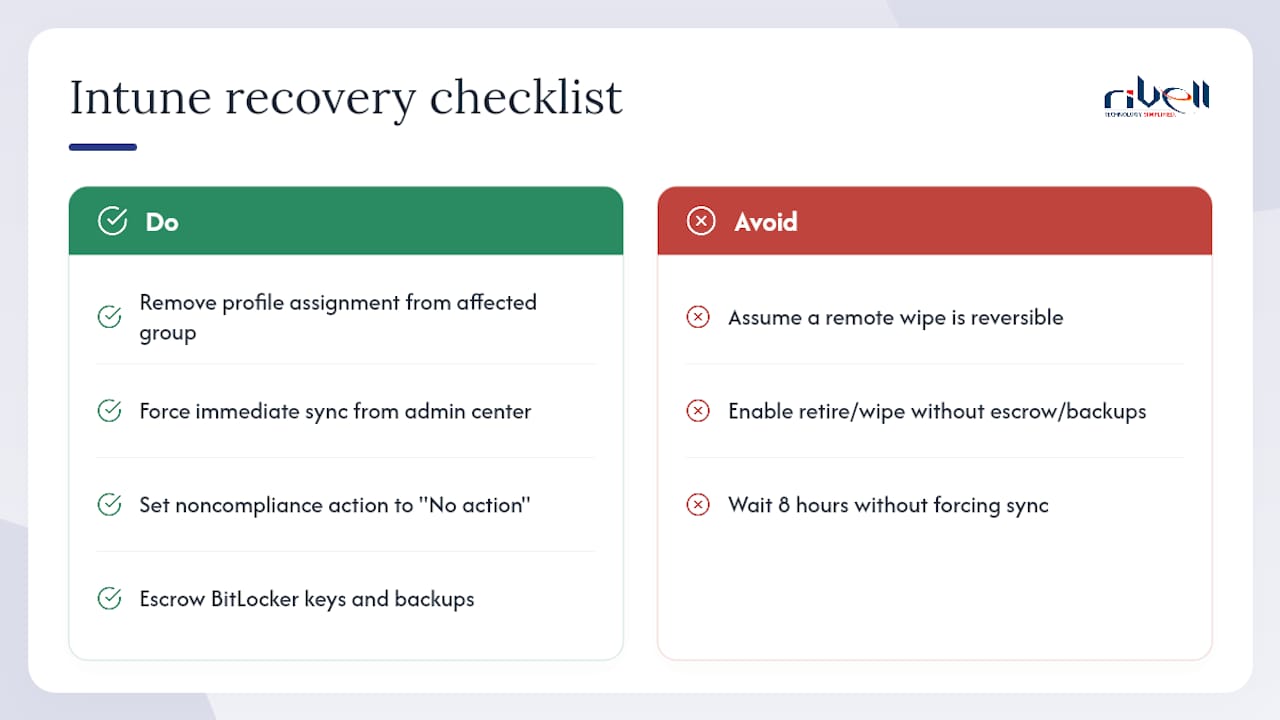
Pro Tip: Escrow BitLocker recovery keys to Intune before enforcing BitLocker compliance. If you enforce compliance first and a device encrypts before the key uploads, you have an encrypted device with no recovery path.
How do you recover from a misconfiguration in Intune?
Misconfiguration in Intune rarely bricks a device outright, but a bad policy assignment can lock users out of resources or trigger unexpected device wipes. Recovery depends on how quickly you catch the issue.
For policy assignment errors: go to Devices > Configuration Profiles (or Compliance Policies), select the affected profile, and remove the assignment from the affected group. Devices check in within 8 hours by default; force an immediate sync from the admin center to accelerate the rollback.
For a compliance policy that incorrectly marks devices as noncompliant: temporarily set the noncompliance action to “No action” to stop Conditional Access from blocking users while you investigate. Fix the policy rule, then restore the noncompliance action.
For a device that received a remote wipe by mistake: Intune wipes are not reversible once the device processes the command. This is why BitLocker recovery keys escrowed to Intune and a recent backup are non-negotiable before enabling retire/wipe actions in noncompliance sequences.
For an Autopilot profile misconfiguration: if a device completed OOBE with a bad profile, reset the device (Settings > System > Recovery > Reset this PC, keep nothing), re-register the hardware ID with the corrected profile, and run OOBE again.
For a broken SCEP certificate profile: if devices lose Wi-Fi or VPN access due to a certificate issue, create a temporary configuration profile with a pre-shared key or alternate authentication method, assign it to the affected group, and use that as a bridge while you fix the certificate connector.
The safest recovery posture is one you build before you need it: keep a JSON export of every production policy in version control, updated after every change. When something breaks, you have a known-good reference to compare against.
How do you automate Intune deployments at scale?
Manual policy creation works for a 50-device pilot. It does not scale to 500 devices across multiple sites without automation.
Microsoft Graph API is the foundation of Intune automation. Every policy, profile, and assignment you create in the admin center has a corresponding Graph API endpoint. The PowerShell Graph samples repository contains ready-to-use scripts for exporting compliance policies, configuration profiles, and app assignments.
PowerShell + Microsoft Graph PowerShell SDK (Microsoft.Graph.Intune module) lets you script bulk operations: create 20 compliance policies from a JSON template, assign them to dynamic groups, and log the results, all in a single script run. Use Connect-MgGraph with a service principal and certificate authentication for unattended automation.
Bicep / ARM templates are not directly applicable to Intune policy creation, but they work for the surrounding Azure infrastructure (Log Analytics workspaces for Intune diagnostics, Azure Automation accounts for scheduled scripts).
Intune’s built-in import/export (Settings Catalog profiles support JSON export and import directly in the admin center) handles single-profile duplication without scripting. For bulk operations across tenants or environments, scripting is faster.
For organizations managing Intune across multiple clients or tenants, Microsoft’s multi-tenant management view in the Intune admin center (under Tenant Administration > Multi-Tenant Management) provides a single pane to view compliance and enrollment status across tenants without switching contexts.
How do you keep Intune components current and compatible?
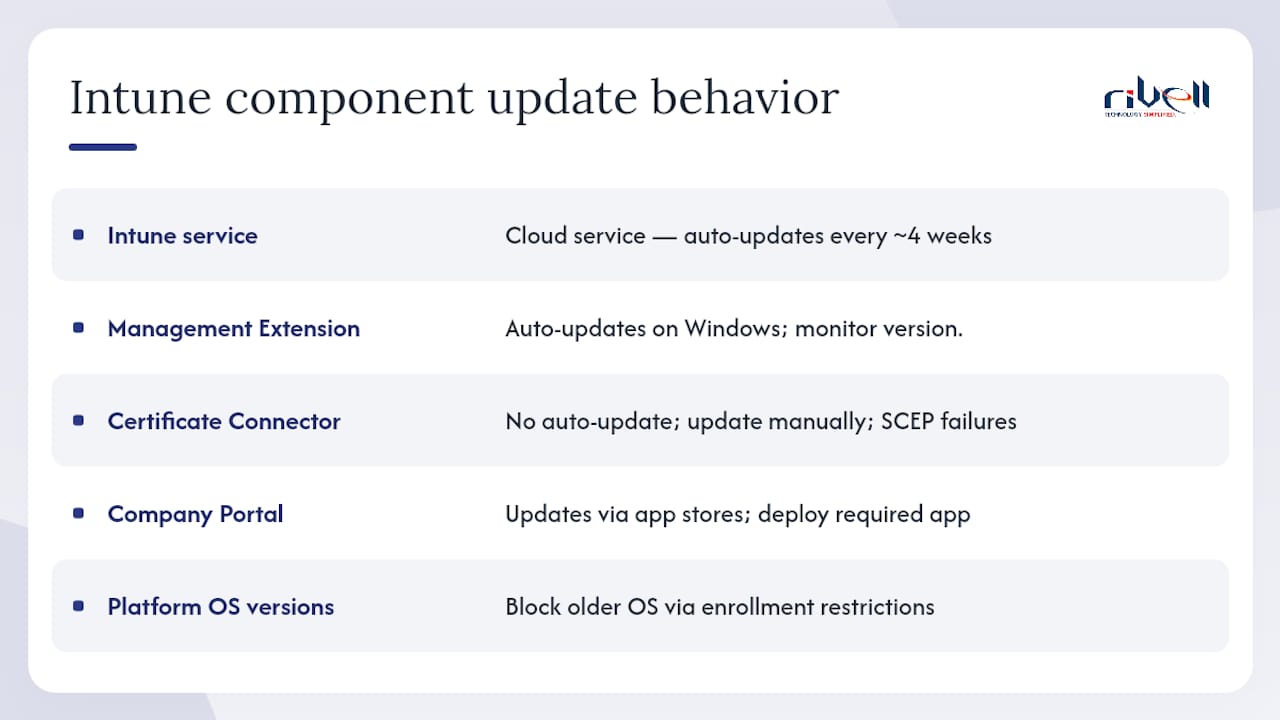
Intune itself is a cloud service and updates automatically on Microsoft’s release cadence, typically every four weeks. You do not patch the Intune service. What you do manage are the client-side components and the devices they run on.
Intune Management Extension (IME): updates automatically on Windows devices when a new version is available. No admin action required, but monitor the IME version in device inventory if scripts or Win32 apps behave unexpectedly after a service update.
Intune Certificate Connector: does not auto-update. Check the connector version under Tenant Administration > Connectors > Certificate Connectors and update manually when Microsoft releases a new version. Outdated connectors are a common cause of SCEP certificate delivery failures.
Company Portal app: on Windows, the Company Portal updates through the Microsoft Store. On iOS and Android, users update it through the App Store and Google Play. For managed devices, you can deploy the Company Portal as a required app to control the version.
Platform OS versions: Intune drops support for older OS versions periodically. Microsoft announces end-of-support dates in the Intune What’s New documentation. Set enrollment restrictions to block devices below your minimum supported OS version, and use Windows Update for Business policies (via Intune) to keep Windows devices current.
Settings Catalog updates: Microsoft adds new settings to the Settings Catalog with each service release. Review the “What’s new in Microsoft Intune” page monthly to catch new controls relevant to your security baseline.
How long does a full Intune deployment actually take?
The honest answer: a new tenant can be configured and a pilot group enrolled in a single day. Full production deployment across a mixed-platform fleet of 200 devices typically takes 3–6 weeks when you account for testing, user communication, and issue resolution.
Week 1: Tenant setup, license assignment, group creation, and pilot enrollment (5–15 devices). Target: at least one device per platform enrolled and compliant.
Week 2: Validate compliance policies, app deployments, and Conditional Access in report-only mode. Fix enrollment failures and policy conflicts surfaced by the pilot.
Week 3: Expand to a department or site (50–100 devices). Enable Conditional Access enforcement for the pilot group. Begin Autopilot registration for new device orders.
Week 4–6: Full fleet rollout in batches. Enable Conditional Access enforcement for all users. Complete BitLocker/FileVault escrow validation. Finalize LAPS and Windows Hello for Business deployment.
Organizations with existing Microsoft 365 tenants and clean Entra ID group structures move faster. Organizations migrating from a third-party MDM or with complex on-premises AD environments should add 2–4 weeks for co-management configuration and device re-enrollment planning.
For SMBs without a dedicated IT team, this timeline is realistic only with a managed provider handling the configuration work. Rivell’s cloud endpoint management guide covers how managed deployment compares to self-service for organizations evaluating both paths.
What Rivell has learned from real Intune deployments
The most expensive Intune mistake is not a technical one. It is assigning a compliance policy with a retire action to “All Devices” before the pilot has validated that every device type in the fleet can actually meet the compliance requirements. One client had macOS devices running an OS version below the minimum set in the compliance policy. The retire action was scheduled for day 30. The pilot caught it on day 3, before a single production Mac was wiped.
The controls that prevent this are simple: assign every new policy to a named pilot group first, never to “All Devices.” Stage noncompliance actions with a minimum 7-day grace period before any destructive action. And run Conditional Access in report-only for at least one full business week before enforcement.
The second pattern worth noting: organizations that skip the Company Portal branding step see significantly higher helpdesk ticket volume during enrollment. Users who see a generic Microsoft enrollment screen with no company name or support contact call IT immediately. Twenty minutes of branding work eliminates a predictable wave of “is this legitimate?” tickets.
Staged enforcement windows matter too. Rivell schedules Conditional Access enforcement changes for Tuesday mornings, after the Monday rush and with three full business days before the weekend. If something breaks, there is time to investigate and roll back without a weekend crisis.